Thursday, May 17, 2012

LCD serial display out of an old Palm


Here's a good way of recycling old hardware: Use a palm device for your Arduino projects as a full-featured display.

You may want to get rid of the DB9 serial cable by just cutting it from the cradle and adding this small and cheap TTL-RS232 converter made of two transistors and four resistors. This circuit is a must, since the palm device uses RS232 levels to communicate while your Arduino or other micro will most likely use TTL levels.

Make sure you have some spare method to transfer software from the computer to the palm if needed, such as an SD card.


The circuit in place.

Rear view of the cradle.


The circuit fits nicely in the cradle, and the schematics are a modified design taken from Jim's Projects [Link] I made a different design choice here, and pull up the palm's RX line directly from +5V instead of doing it from DTR.


Schematics for the TTL-RS232 conversion circuit.

If you don't plan to use your Palm as a serial input device, then the TX line of the Palm (pin 2) is optional and you may wish to use only the output line of your microcontroller for a unidirectional configuration.


The finished setup at work. You can keep it handy in your workbench. The stand helps to keep it at a nice view angle.


Here you can see a repurposed Palm with PalmOrb software, which emulates a 16x4 LCD screen.
However you can use any standard Palm terminal software.

Plug and Play, no especial libraries required in the Arduino.

Enjoy!


Friday, April 27, 2012

DSO Nano made useful

DSO Nano V2 from Seeedstudio is a great hobbyist scope. Even though not Pro, it has proven to be very helpful for troubleshooting everyday situations.

There are two things however, where this scope really sucks: The stand, and the probe. The probes that come with it are cheap and ugly. The stand is a small piece of aluminum that will not hold the scope in place, making it difficult to work with.

So How to fixe them both?: You can get a standard probe from Amazon and adapt a small plug in just minutes. The stand is even easier if you happen to have a Panavise Jr: The DSO fits perfectly and stays rock solid!
This not only provides good angle for viewing but also allows single-handed operation, which for many will be the most important feature.

This is the best stand for the DSO Nano you will ever come up with.

Standard connector with the MONO metal plug:


The finished probe for the Nano:

Saturday, November 5, 2011

Arduino based Big Countdown Timer for New Year

The finished project at 11:39, before turning itself into a countdown timer. This timer has been in production since December 31st 2011 (upd: in production until 2020, decommissioned in July 2024)


October, 2011.
Inspired by Sparkfun's GPS clock, I decided to build my own version of a big countdown timer for New Year.

1) The concept
Dual function: A clock that starts at 11:00PM and simply shows the time for the entire hour. The idea behind it is to drive people's attention and let them know where the clock is.

I didn't  need a 24h clock, only something that tells the time from 11:00p to 11:58p and turns into a countdown timer for the last minute (the hour digits turns off and the countdown starts from second 59 to 00).

This approach saved me 6 segments and some space as well.

2) The clock itself:

I went as readable as I could, readable but portable. I used bright white LEDs (not ultra-bright) and some transistors. I happen to like Ben Krasnow's way of dealing with transistors.

This is what the first concept looks like:


3) Controlling the clock:
I used an Arduino and shift registers to control the segments, you can also use two Arduinos via I2C.

Two shift registers (74HC595) command the segments. 
An Arduino controls the shift registers, cycling about 150 times per second.

4) Time accuracy:

I wanted this thing to be accurate. The Atmega chip keeps track of time but they are not accurate enough over long periods of time, reason why I added a RealTime Clock Module.
Now, in order to have the RTC set at the right time, I added NTP Atomic Clock Synchronization capabilities through an Ethernet Shield.

Edit: After the first year into production, I decided to simplify the design by replacing the RTC+Ethernet shield with an LCD shield. This allows to manually adjust the clock while having a simpler setup.

In order to keep accuracy I use an NTP app in my iPhone and manually adjust the Arduino until it's synchronized by using the buttons available on the LCD shield.


5) The Design:

Before the shift registers, I used a two-arduino approach with served me well while shift registers were not available at the local store.

One GREAT source to  understand how the shift registers work is here at BLDR.ORG:


Check out bldr.org
Wiring of the 74HC595 I used. Check out bldr.org!


Back to the design board:

- I wanted to balance the amount of LEDs with functionality, and I ended up with 3 LEDs per segment.
- I could have gone with larger digits but I found that the size I went with was good enough.
- I wanted this to be both inexpensive and battery operated so I chose super-bright leds instead of ultra-bright.


6) The build:

This design calls for portable and lightweight, so let's use these convenient cardboard box lid.


I had these boxes in my storage room. I borrowed 3 lids.


Design of the digits. I drew them proportional to a small 7 segment display, under the assumption that it will increase readability.

Adding the LEDs to each segment:


8 segments in place. Each segment consists of 3 LEDs

Time to solder some wire, add current limiting resistors, some transistors and more resistors for their base just like the original design in paper.


Wiring at the back. The deadbug chip at the center is a resistor array.


First test:


First digit is complete. number 3 shows up.


And then another instance of the same digit plus a third that only does number 11, to get the project complete.

Front of the completed project, the three digits can be easily separated and piled up for easy transportation.


Back of the unit

Back of the unit


Portable mode!


Main controller


Test scenario: balcony. View from ground, several floors below:

Photo Enhanced ASA800 (Canon S3IS)

Normal Photo (ASA 100)

7) Power:

When all of the LEDs are on, consumption of the whole circuit is reasonably low.
This allows me to power the entire system with a 2000[mAh] 11.1[V] Lithium Polymer battery, making the clock 100% autonomous for the whole hour it is used.


Happy new year!   - ViƱa del Mar, Chile.

Wednesday, January 5, 2011

Arduino Protoshield Mods

Three simple and quick modifications that will transform your protoshield to a fully functional monster.

1) One millimeter higher:

Use 4 male header plastic bits. One for each of the 4 corners of the protoshield


This way, the protoshield stands a little higher than standard


But the benefits are great: You don't have to worry about shorts with the USB connector anymore.


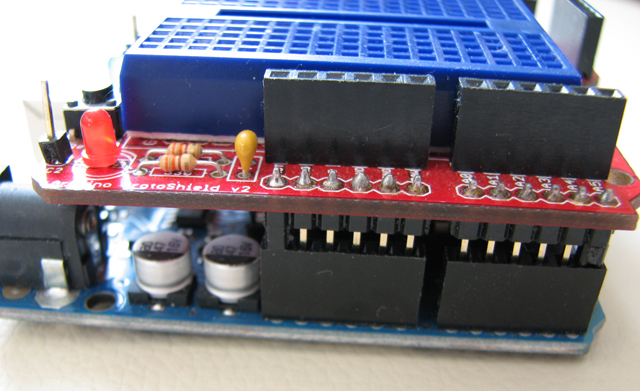
Safe distance. At the same time, the protoshield is so much easier to plug and unplug now.


2) An LED tester

I don't use the BlueSmirf socket. But I connected the female headers because it provides an extra +5 and extra GND for prototyping. 
With a single 300 Ohm resistor between GND and the centermost pin (originally unused in the Sparkfun protoshield, you will be able to use the two centermost pins to test any led: Very handy!!!


3) A Power LED on top

If you add a resistor to +5  and an LED on top will serve as a Power LED on top of the protoshield. This is very handy to make sure your system is powered:


Enjoy!

Wednesday, December 1, 2010

Helping hand mods

How to get more help from your helping hand:


1) Add a third hand to your third hand: The reason is that you will be soldering something being held by the main pair of alligators, and will still need an extra clip to hold a wire you want to tin before soldering.

2) Wrap the teeth with heatshrink tubing: It will prevent the teeth from scratching your boards or other delicate subjects.

3) Rubber Pads for increased grip. A must-add!


Use it backwards just as shown in the first picture: This way the vertical force coming from the weight of your circuit will not be enough to tip it over. Seems pretty obvious but for a time it wasn't for me.

Thursday, July 29, 2010

Atari SIO interface using a Duemilanove

How to interface your vintage Atari 130XE (800XL and others) with a laptop in order to download and play games using the laptop as a substitute for the Atari floppy disk drive.

Sunday, March 21, 2010

Extremely simple I/O port expansion using two arduinos and I2C

Here's a simple way to expand your I/O ports using two Atmega microcontrollers.

It works flawlessly in my projects, even with other I2C devices hooked up at the same time. This may not be as cheap as using a multiplexer, shift registers, a MuxShield or so many other ways of doing this but hey, this approach may save you if in need of more ports and you have more than one Arduino in your parts bin.

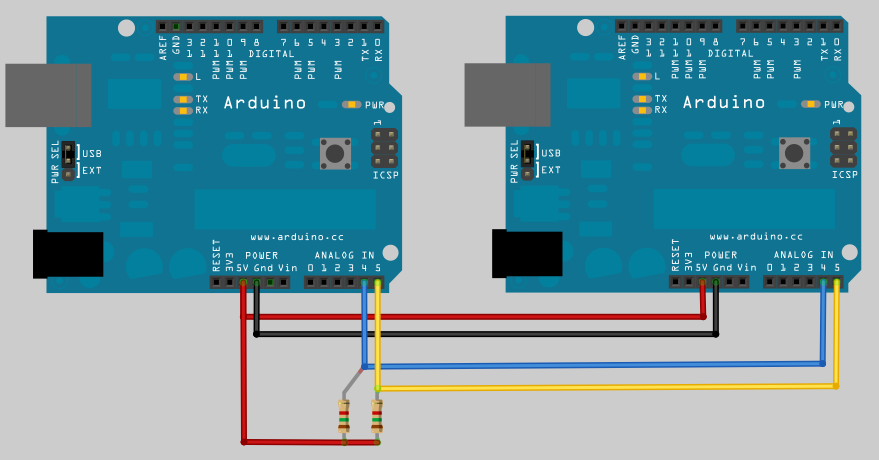
The connection diagram. The pull-up resistors shown are optional.

The connection is the same as what you would do with a standard I2C between two arduinos. I added pull-up resistors to each wire.

Basically what this does is to allow the master Arduino to access the remote's I/O pins, thus, expanding its original I/O capacity. You can hook up many Arduinos in parallel expanding to more I/O pins as needed.
 

For the code, I started with "Wire Slave Receiver" by Nicholas Zambetti and modified it to this purpose:


The code at the Master Arduino:


#include <Wire.h>

#define LOCAL_PIN_TWO 2      // Pin 2 on local
#define REMOTE_PIN_TWO 102          // Pin 2 on remote
#define TEMPERATURE_PROBE_PIN 103   // Pin 3 on remote
#define SPEAKER_PIN 104         // Pin 4 on remote


void setup()
{
  Wire.begin(); // join i2c bus (address optional for master)
}

void loop()
{
// Whenever you want to write to the other Arduino just go with something such as expansionWrite(102,HIGH); 
// That will -for example- set the pin 2 on the second arduino to high. I used the 102 nomenclature only to differentiate the two boards. It avoids confusion. You will see how the exceeding 100 is substracted when the time comes.
}

void expansionWrite(int pin, int value)
{
  pin = pin-100;  // substracts 100 so it maps to the real ports on the expansion arduino
  Wire.beginTransmission(2); // transmit to device #2
  Wire.send(pin);              // sends one byte stating the pin to be addressed
  Wire.send(value);          // sends the value to be transmitted to the pin selected
  Wire.endTransmission();    // stop transmitting
}


The code at the Slave Arduino:

#include <Wire.h>

void setup()
{
  Wire.begin(2);                // join i2c bus with address #2
  Wire.onReceive(receiveEvent); // register event
}

void loop()
{
    // Whatever. maybe nothing.
}


void receiveEvent(int howMany)
{
  int port = Wire.receive();    // receive byte as an integer
  int value = Wire.receive();   // receives the byte with the value
  digitalWrite(port,value);         // sets the pin to the desired value
}


Final Note: You can even use the second arduino for READING at the same time even it's a slave machine. The only thing you need to do is add some extra code as follows:

Master requests the value on a certain pin located at the slave Arduino:


  Wire.beginTransmission(2); // transmit to device #2
  Wire.requestFrom(2, 1); // Requests 1 byte from device #2
  remote_pin_status = Wire.receive();
  Wire.endTransmission();    // stop transmitting

Then the slave needs something like this:

void setup()
{
    Wire.onRequest(requestEvent); // register event
}

and somewhere else in your code something like this:

void requestEvent()
{
  byte variable_name = digitalRead(pin_of_your_choice);
  Wire.send(variable_name); // respond with message of 1 byte as expected from Master
}