Showing posts with label arduino. Show all posts

Wednesday, May 9, 2018

Incandescent light bulb effect simulated with a microcontroller and LEDs

Last year, I received this marquee sign as a gift:


What do we have?

A beautiful marquee sign: simply constructed on a real metal frame, printed cardboard with printed rust, printed screw holes and such for aged-tin effect. It looks fairly realistic and pleasant to the eye.


A very nice detail I found are these mock-up light bulbs ,made of a small glass bulb screwed on top of a standard warm white LED:


A small switch on the side closes the circuit delivering 3v from two AA batteries located on the back, allowing all of these leds to turn on simultaneously. It's nice to see it lit, but there is room for a small project.

Room for improvement:

This sign is crying for enhanced simulation, so this project will consist of:

1) Adding a sequence for the bulbs just like the real deal.

and

2) LEDs bright up instantly, and there's no nostalgia in that. Instead, let's emulate the slow paced filament / tungsten / incandescent effect of vintage light bulbs.

This whole project was influenced by real marquee signs such as the one below


some of you may recognize this sign.

Solution:

This is a relatively simple microcontroller project, so let's get it done:

Requires cutting the original connections and rewire them to the PWM pins on the arduino.
The pins you choose NEED to be PWM if you want to simulate the filament effect.

I wired each letter individually and treated the bowling pin as an individual, (the LEDs on the bowling pin are in parallel).


The original battery holder was also replaced by a holder for two 18650 type batteries. These will deliver 8v but the voltage regulator on the Arduino nano takes care of the excess voltage.

The light bulb effect:

There is a way of achieving this with an analog circuit (more on that here), but I went for a software solution since the Arduino board was already in.

So here's my gift to you people: How to accurately simulate a lightbulb by means of applied science.

It's not a matter of slowly turning a led on or off in a linear fashion, no: that doesn't look natural nor responds to the way the I-V curve of a light bulb behaves in real life.

If you want a more realistic approach, you should go for an exponential equation that looks like this:


The blue line represents the turning on phase, and the red one when the led shuts down.

To accomplish this, you may use an equation of the form:

Source: 1st order differential equations (https://www.math24.net/learning-curve/)


In this case Lmax is equal to 255 since PWM on the atmega 328 fluctuates between 0 and 255.
I chose k = 0.02 to shape the curve to my liking, and M=0 (M being the resulting value of L(t) when t=0)

The equation looks like this when coded in C or Process and the aforementioned values are applied:

led_intensity = 255-((255-0)*exp(-0.02*t));

...where the function exp(x) means e to the power of x.

And voilá, the project is finished and the sign is much more fun to watch now.


This animation above does not reflect the incandescence effect, but you get the idea. Try the code and play with it!


Sound effect bonus:
You may have noticed that the Arduino nano sits on top of a green PCB. This is because I may decide to add a 5v mini relay and have it click every time a bulb turns on or off. Then the effect will be complete, by emulating the clicking sound of vintage marquee signs.


Code:


/// June 2017Marquee Bowling sign with Tungsten filament lightbulb simulation using LEDS

// Pin number definition follows
// These all need to be PWM pins, so that explains the choice for 3,5,6,9 and 11.

#define B_lamp 3  
#define O_lamp 5
#define W_lamp 6
#define L_lamp 9
#define BOWLINGPIN_lamps 11

#define max_illumination 110  // Up to 255, this defines the maximum illumination you want
// multiple lamps in parallel require an extra for extra current so we need to compensate for that
// otherwise the letters on the sign will glow brighter than the bowling pin
#define max_illumination_for_bowling_pin 255  
#define pausa 1000
#define filament_simulation 1500  // This parameter allows your lamps to turn on an off quicker or slower depending on the type of light bulb and voltage you are simulating.

// the setup function runs once when you press reset or power the board
void setup() 
{
  // Serial.begin(9600);  // This is for debugging purposes, disabled by default. 
  // initialize digital pins
  pinMode(B_lamp, OUTPUT);
  pinMode(O_lamp, OUTPUT);
  pinMode(W_lamp, OUTPUT);
  pinMode(L_lamp, OUTPUT);
  pinMode(BOWLINGPIN_lamps, OUTPUT);
}

// the loop function runs over and over again forever
void loop() 
{
  // Program the sequence you like. This is the one I chose.
  turn_on(B_lamp);
  delay(pausa);
  turn_on(O_lamp);
  delay(pausa);
  turn_on(W_lamp);
  delay(pausa);
  turn_on(L_lamp);
  delay(pausa);
  blink_bowlingpin();
  delay(pausa*3);
  turn_off(B_lamp);
  delay(pausa);
  turn_off(O_lamp);
  delay(pausa);
  turn_off(W_lamp);
  delay(pausa);
  turn_off(L_lamp);
  delay(pausa);
  turn_off(BOWLINGPIN_lamps);
  delay(pausa*2);
}


void turn_on(int lamp)
{
  int maximum = max_illumination; if (lamp==BOWLINGPIN_lamps) maximum = max_illumination_for_bowling_pin;  
  // Now we initiate the slow glow effect
  for(int tungsten=0 ; tungsten <= 200 ; tungsten++)
    {
      float level = 255-((255-0)*exp(-0.02*tungsten));  // This is what really matters: an exponential equation for realistic light bulb simulation, not that linear rubbish.
      level = map(level,0,251,0,maximum);  // Remap the maximum to the desired level.
      analogWrite(lamp, level); // PWM comes to save the day, that's why we analogWrite
      delayMicroseconds(filament_simulation);  // How fast or slow you want your bulbs to be
      //Serial.print(tungsten);Serial.print(";");Serial.println(level);  //This is for debugging only.
    }
}

void turn_off(int lamp)
{
  int maximum = max_illumination; 
  if (lamp==BOWLINGPIN_lamps) maximum = max_illumination_for_bowling_pin; 
  for(int tungsten=0; tungsten <= 200 ; tungsten++)
    {
      float level = 251-(255-((255-0)*exp(-0.02*tungsten)));  // The same curve, in the opposite direction
      level = map(level,0,251,0,maximum);
      analogWrite(lamp, level); 
      delayMicroseconds(filament_simulation/2);
      //Serial.print(tungsten);Serial.print(";");Serial.println(level);
    }
}

// Now some blinking to catch the eye of the distracted driver on the road and get them into our bowling business

void blink_bowlingpin() 
{
  for (int blink=0; blink <3 ;blink++)
  {
    turn_on(BOWLINGPIN_lamps);
    delay(pausa/2);
    turn_off(BOWLINGPIN_lamps);
    delay(pausa/2);
  }
  turn_on(BOWLINGPIN_lamps);
}

Friday, March 28, 2014

Quick LED tester for your Protoshield


Why build this project:


1) Because it's an LED tester on your proto shield that doesn't mind orientation. Ideal for quickly testing a suspicious LED or checking the color on a transparent LED.

2) Arduino independent, it's based in the 555 bi-polar LED driver, so it doesn't interfere with any of your Arduino pins or code.

3) Because it's easy and affordable way of learning how a 555 works.

How to build this project:

It goes like this:


Use this build as a learning experience on the 555!


What happens at the LED side?

Look at the diagram above. Let's imagine you have two LEDs, one GREEN, one RED connected just as above. Commonly referred to as Vcc, the supply voltage can range between 5V and 15V. In this example, we will use 9V.

1) Simply put, we are connecting the left leg of the LED to the output pin (3), which oscillates between 0V and the supply voltage (Well, actually the supply voltage minus 1.7V so it's around 7.3V in this case. Refer to the 555 timer wikipedia article for details.)

2) The other leg of your LED (the one on the right) is connected to the resistor divider, which divides the 9V. So only 4.5V are present at that leg.

3) As a consequence of step 2 above, when pin (3) his HIGH, your LED sees a potential difference of 4.5V, and when (3) is LOW, it sees a potential difference of -4.5V and BAM! That's why the current alternates in both directions allowing you to place LEDs in any orientation.

Note: Since I usually feed my Arduinos with 12V, I replaced the two 220 Ohm resistors for 290 Ohm in order to reduce the power consumption of the resistor divider to less than 1/4W. This impacts consumption but the voltage divider still divides to 4.5V.


OK, got it. Now, what happens at the capacitor/resistor side?


1) The combination of the Cap and the resistor produces a delayed charge and discharge of the capacitor. The very same output pin (3) we use to drive the LED is used here to both charge the capacitor when output is HIGH and discharge it when the output is LOW.

2) Both inputs of the 555 Trigger (Pin2) and Threshold (Pin 6) are shorted together, which leaves us with a single input that reads the voltage at the capacitor.

3) Remeber that in this example we are feeding the circuit with 9V. Whenever the input reads below 3V from the capacitor, it will turn the output HIGH, turning the green LED ON. At the same time, the capacitor begins to charge, slowly rising the voltage at the input pin (2 and 6).

4) As soon as this rising voltage gets above 6V, it will reset the 555, setting the output to LOW which activates the red LED, and at the same time it begins to discharge the capacitor, which will eventually get to below 3V, leaving us at step 3 again.

So, why are these boundaries at 3 and 6 volts?


Because I used 9V as an example for feeding the circuit. 3V and 6V are 1/3 and 2/3 of 9V respectively.
If I had used 12V to feed my circuit, boundaries would have been 4V and 8V respectively because it's always 1/3 and 2/3 of the supplied voltage.

Can I make them blink quicker or slower?


Of course you can. Check out these great resources:

1.- HyperPhysics at Georgia State University - A simple tool for calculating time to charge/discharge your capacitor.
2.- Wikipedia - RC time constant

Top view:


Bottom view:


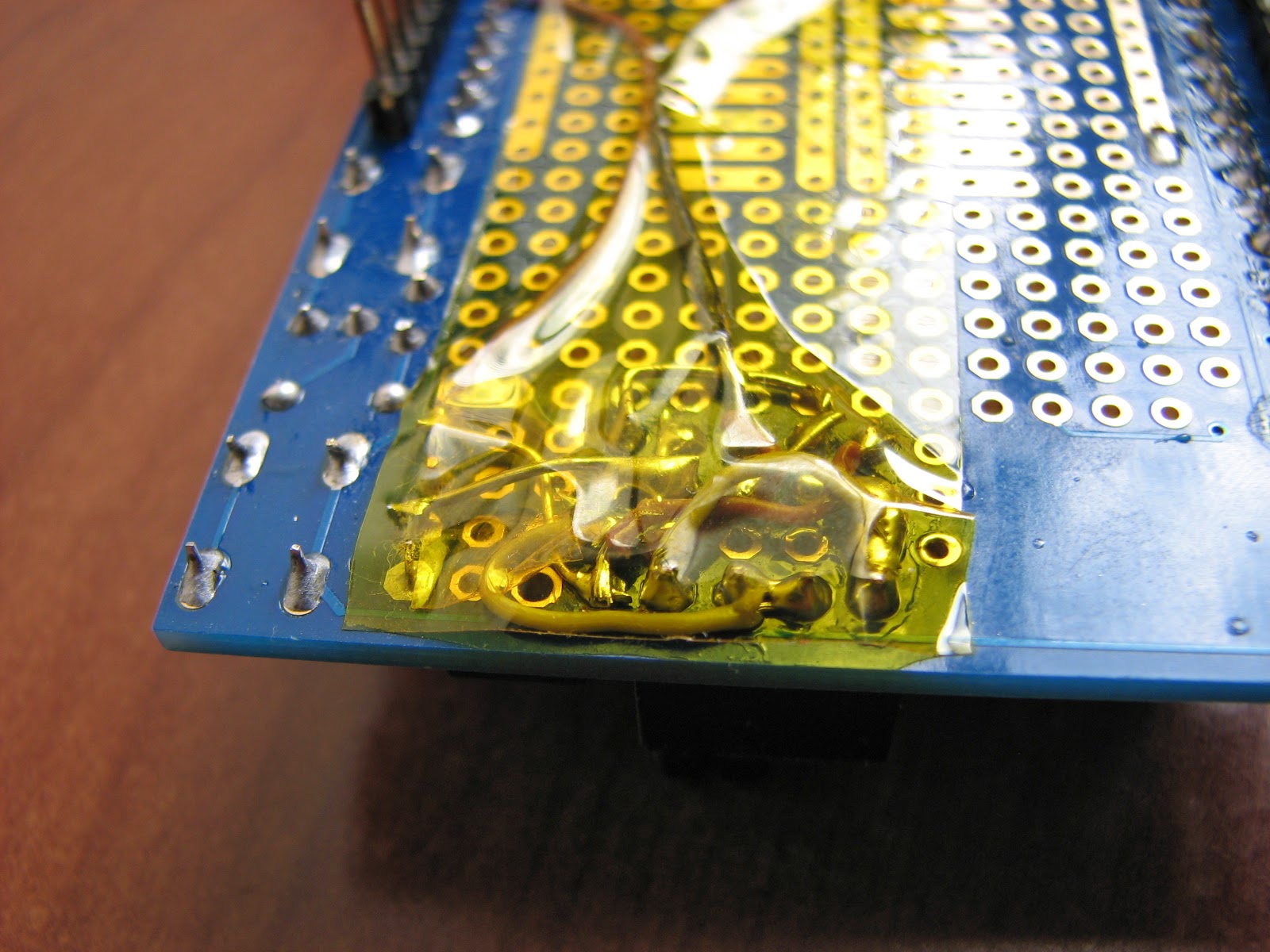
Finally, if you want to see some of my other mods for the Proto Shield, click here.

Friday, February 28, 2014

Moody Tubes - Vacuum tubes to set your mood!

This is an ornament made of old vacuum tubes and some basic electronics including LEDs, Arduino and resistors.


Features:

- Three tubes which slowly change colors.
- Integrated battery meter. Right after power up, it measures its own battery level and shows the level by graduating one of the tubes from Green(full) to Red(needs recharging). If at any point battery goes below threshold levels, it will go into "blink-red" mode and will refuse to do its coloring thing.
- Potentiometer for manual adjustments.
- A battery. I used a Lipo 11.1, 2500mAh battery which was almost gone for trash because it couldn't serve my airplanes anymore.


Materials required:

- A suitable box
- Vacuum tubes (don't need to be in working condition, just need to look pretty)
- RGB LEDs (One per tube)
- 330ohm resistors (15 of them or a resistor array as I used)
- Your favorite micro-controller (I went for an ATMEL Atmega 328).
- A 5v regulator
- A potentiometer (may be even buttons or an IR sensor)

Plan for it


Assemble the hardware. 


Leds are hot glued underneath the tubes:


Consider from my design that the three LEDs are in parallel, which means they show the exact same color at all times. The only one that's different is the center one, where I added an orange led for a cleaner orange tone.


Also consider that LEDs can be turned ON or OFF independently, reason why instead of a common ground connection they go to digital output pins. This also means that to power up each LED you need to bring that ground pin to LOW.


Let's take a closer look at the power regulator:


Pick your colors.

I wrote some code to manually change each color so I could visualize the mix I liked the best, and wrote those values down.


Enjoy your relaxing toy.


Use the potentiometer to increase or decrease the speed at which colors change. I went from somewhat fast all the way down to super-super slow. It will take several minutes to change to the next color. This is for a more realistic approach.

Arduino Code


// PIN DEFINITION
int redPin = 9;
int greenPin = 10;
int bluePin = 11;
int orangePin = 6;
int tubesmaPin =5;
int tubelarPin = 4;
int tubemedPin = 3;
int potPin = A2;
int buttonPin = 7;
int battPin = A1;
// OTHER VARIABLES
int maxbattery = 283;  // reading at which the battery is at 12.3V, which we consider full capaciity.
int minbattery = 244;  // reading at which the battery is at 10.8V, level at which we will consider the battery needs urgent recharging.
int boot_check = 1;
long previousMillis = 0;        // will store last time LED was updated
int redvalue = 0;  // Stores the current value of the color
int greenvalue = 0;
int bluevalue = 0;
int orangevalue = 0;
int potenciometro;
int transitfinished =0;
// __________________________________________________________________________________________________________________________________________________________________
void setup()
{
  Serial.begin(9600);
  pinMode(redPin, OUTPUT);
  pinMode(greenPin, OUTPUT);
  pinMode(bluePin, OUTPUT);
  pinMode(orangePin, OUTPUT);
  pinMode(tubesmaPin, OUTPUT);
  pinMode(tubelarPin, OUTPUT);
  pinMode(tubemedPin, OUTPUT);
  pinMode(potPin, INPUT);
  pinMode(buttonPin, INPUT);
  shutdown_tubes();
}
// __________________________________________________________________________________________________________________________________________________________________
void loop()
{
  go_automatic();
  //check_voltage();
  //while(digitalRead(buttonPin)) { go_manual(); }
  //show_dead_battery();
  //delay(1000); // delay after the press of the button
  //while (digitalRead(buttonPin)){ go_automatic();}
  //delay(1000);
}
// __________________________________________________________________________________________________________________________________________________________________
// __________________________________________________________________________________________________________________________________________________________________
/*
System health functions
*/
// __________________________________________________________________________________________________________________________________________________________________
void check_voltage() // blinks one tube with the status of the battery: Green = 12.4v, Red is below 11.1v and needs recharging
{
  int battvalue = 0; // stores the reading on the battery
  battvalue = analogRead(battPin);
  battvalue = map(battvalue,minbattery,maxbattery,0,255);
  if (battvalue<0) battvalue = 0;
  if (battvalue>255) battvalue = 255;
  Serial.print("battvalue:");
  Serial.println(battvalue);
  if (battvalue<1) show_dead_battery();
  if (boot_check == 1)  //Does this only once when booting.
    {
      shutdown_tubes();
      // green = full, red = depleted.
      setColor(255-battvalue,battvalue,0,0);
      digitalWrite(tubesmaPin,LOW); // Activates the small tube
      delay(2000);
      digitalWrite(tubesmaPin,HIGH); // Shuts the tube down
      delay(500);
      setColor(0,0,0,0);
      boot_check = 0;
    }
}
// __________________________________________________________________________________________________________________________________________________________________
void show_dead_battery()  // Breathes red tube FOR EVER, nothing else.
{
  shutdown_tubes(); // Shuts all the tubes down
  setColor(0,0,0,0);
  digitalWrite(tubesmaPin,LOW); // Activates the small tube by bringing the cathode LOW.
  int destination = 255;
  while(1)
  {
      if (redvalue==0) destination = 255;
      transit_color(3,destination,0,0,0);
      if (redvalue==255) destination = 0;
  }
}
// __________________________________________________________________________________________________________________________________________________________________
/*
Functions involving LED activity
*/
// __________________________________________________________________________________________________________________________________________________________________
void setColor(int red, int green, int blue, int orange)
{
  analogWrite(redPin, red);
  analogWrite(greenPin, green);
  analogWrite(bluePin, blue);
  analogWrite(orangePin, orange);
  // let's reflect the current values in the variables
  redvalue=red;
  greenvalue=green;
  bluevalue=blue;
  orangevalue=orange;
}
// __________________________________________________________________________________________________________________________________________________________________
void transit_color(int transitspeed, int red, int green, int blue, int orange)
{
  unsigned long currentMillis = millis();
  if((currentMillis - previousMillis) > transitspeed) //If transitspeed = 12 implies approx 3 sec in raising a led from 0 to 255
    {
        // save the last time I adjusted the LEDs
        previousMillis = currentMillis;
        if (redvalue<red) redvalue++;
        if (redvalue>red) redvalue--;
        if (greenvalue<green) greenvalue++;
        if (greenvalue>green) greenvalue--;
        if (bluevalue<blue) bluevalue++;
        if (bluevalue>blue) bluevalue--;
        if (orangevalue<orange) orangevalue++;
        if (orangevalue>orange) orangevalue--;
        setColor(redvalue,greenvalue,bluevalue,orangevalue);
        if (redvalue==red && greenvalue==green && bluevalue==blue && orangevalue==orange) transitfinished = 1;
    }
}
// __________________________________________________________________________________________________________________________________________________________________
void shutdown_tubes() // Shuts the tubes to dark by raising the cathode to high so no current flows regardles of the RGB pins
{
  digitalWrite(tubesmaPin,HIGH);
  digitalWrite(tubemedPin,HIGH);
  digitalWrite(tubelarPin,HIGH);
  setColor(0,0,0,0);
}
/*
Blinking and Color Routines
*/
// __________________________________________________________________________________________________________________________________________________________________
void go_automatic()
{
  breathe(255,0,140,0);
  breathe(0,255,160,0);
  breathe(255,30,0,255);
  breathe(150,10,255,0);
  breathe(0,0,255,0);
  breathe(0,0,0,255);
  breathe(0,0,255,255);
}
// __________________________________________________________________________________________________________________________________________________________________
void go_manual()
{
  while(digitalRead(buttonPin))
    {
      potenciometro = analogRead(potPin);
      redvalue = map(potenciometro, 0, 1023, 0, 255);
      Serial.print("red:");
      Serial.println(redvalue);
      setColor(redvalue, greenvalue, bluevalue, orangevalue);
    }
  delay(500);
  while(digitalRead(buttonPin))
    {
      potenciometro = analogRead(potPin);
      greenvalue = map(potenciometro, 0, 1023, 0, 255);
      Serial.print("green:");
      Serial.println(greenvalue);
      setColor(redvalue, greenvalue, bluevalue, orangevalue);
    }
  delay(500);
  while(digitalRead(buttonPin))
    {
      potenciometro = analogRead(potPin);
      bluevalue = map(potenciometro, 0, 1023, 0, 255);
      Serial.print("blue:");
      Serial.println(bluevalue);
      setColor(redvalue, greenvalue, bluevalue, orangevalue);
    }
  delay(500);
    while(digitalRead(buttonPin))
    {
      potenciometro = analogRead(potPin);
      orangevalue = map(potenciometro, 0, 1023, 0, 255);
      Serial.print("orange:");
      Serial.println(orangevalue);
      setColor(redvalue, greenvalue, bluevalue, orangevalue);
    }
  delay(500);
}
// __________________________________________________________________________________________________________________________________________________________________
void breathe(int red, int green, int blue, int orange)
{
  transitfinished=0;
  while (transitfinished==0)
  {
    potenciometro = analogRead(potPin);
    potenciometro = map(potenciometro,0,1023,6000,10); // Sets the transition speed with the potentiometer
    transit_color(potenciometro,red,green,blue,orange);
    check_voltage();
    digitalWrite(tubesmaPin,LOW);
    digitalWrite(tubemedPin,LOW);
    digitalWrite(tubelarPin,LOW);
  }
}
// __________________________________________________________________________________________________________________________________________________________________