Friday, November 29, 2013

How to set up a EE lab / Hobby workbench at home

5 simple tips for a removable hobby bench.

Space inside the house is not something many of us have these days.

The following are some recommendations on how to transform a space in your apartment into an electronics hobby bench.


1) Tip#1: Extendable dining table.
Not a must, but a very nice to have.


2) Tip#2: Good lighting. 
Change the bulbs on your ceiling so it is at the level you need. Be creative and build your own ceiling lamp to balance beauty with functionality. Or buy something that will illuminate your bench accordingly.
You can also add a desk lamp such as this:


3) Tip#3: Yoga mat, and even better: ESD mat.
This is a must. This not for relaxing (your hobby is actually for that).
It's to put over the table. It is non-conductive and it will not develop static electricity either.

It will accomplish the following:

- It clearly defines your working area. Easy to trim with scissors to the dimensions you like according to your own preference and arm length.
- It prevents small parts and screws from bouncing off the table and thus it will save you hours and hours of looking for them. Small screws always end up in the most unimaginable places when they bounce off the table, and you know it. Do the test and see how well this mat will absorb shock from falling parts.
- Provides comfort and warm and soft feeling for your arms.
- It will protect your dining table from scratches.


- It provides a cushioned area for your projects or to-be-repaired objects without scratching or damaging them (imagine disassembling an iphone on top of this versus the wooden table).
- It allows you to rapidly clean up your working area. Just lift it and empty thousands of cable insulator and bits of solder and sweat and blood directly on your trashcan! All in one single motion.
- It will eventually get stains and will melt when accidentally aiming your rework station or hot glue gun or soldering iron. You can always get a brand new one for a few dollars.
- And it's easy to fold or roll when not in use.

4) Tip#4: Get the basics

Depending on the nature of your hobby, your mileage may vary.

 To me the essentials are:

- A soldering station.
         Also solder wick and a good solder pump.
- A third hand and a Panavise.
- Tools. To your preference. Check for Collin's Lab: Electronics Tools
- Build an ATX power supply (for sense of accomplishment and endless use of 12V, 5V and 3.3V power with short protection and temp auto-shutdown). I like Jumper One ATX power supply. Add variable voltage capability with an LM317 Another one from JumperOne.
- A decent multi-meter. No need to go Fluke. Just nothing below $40 and you'll do fine.
- An oscilloscope. (You won't need it for general hobby use but eventually it will become helpful).
- A small table-top trashcan to toss your small bits of unwanted material.
- A digital microscope on the cheap: It's not easy to read chip labels or inspect soldering with your bare eyes. Get a manual focusing webcam and use it as a microscope (8 bucks).
- A rework station. For melting hot glue, shrinking heat-shrink tubing and yeah, to rework stuff.
- Isopropyl Alcohol, Q-tips for cleaning. I use it all the time.
- Small parts plastic organizer for putting in screws of the things you disassemble.
- A separate box for unfinished projects and less-used parts, which reminds me of..... step 5:


5) Tip #5: 5S your place.

Seriously. This is by far the most important piece of my advice. If you are not a 5S kind of person, become one. This is vital to be able to enable and disable your lab at will.

Don't know what I'm talking about? 5S describes how to organize a work space for efficiency and effectiveness by identifying and storing the items used, maintaining the area and items, and sustaining the new order. Read More

This means: Get toolboxes, drawers, stackable parts bins. Label and outline tool placement. A place for everything and everything in its place. Measure of success is to be able to put your lab together in 15 minutes and put it all out in 45 minutes (it takes longer to store it out because you end up with new stuff to find a place for, cleaning duties and you are generally more tired and slow). Improve until you succeed.

B) Bonus: Take it one step further


You are most likely skilled at DIY already, so grab your tools and build your own shelf, custom made to your own needs just like this wooden shelf for the Power Supply, scope and multi-meter:


Monday, October 7, 2013

Smartphone Signal Generator

How to build a small amplifier for your smartphone signal generator


You can find plenty of signal generating software for both Android and iOS devices.
Here's an example of Audio Tool for iPhone and iPod Touch. They obviously range between 20Hz and 20KHz (human audible range) because audio output of these devices is meant for music:


However, the voltage ranges of operation are pretty low.


Building a small amplifier for your phone:

I started out from Amanda Ghassaei's Arduino Waveform Generator.

Since the function generation piece of her circuit will be entirely replaced by the iPhone, I just built the OpAmp piece as follows:


I used alternative parts to replace some of these suggested components, starting by the OpAmp, then following for the 22K instead of 20K resistor, and 25v capacitors instead of 50v. Feel free to use slightly different components. 

Prototype:


Building process: Note how the SMD chip levitates on top of the board. I chose pins for easy grabbing with alligator clips or scope hooks.


And the finished product:


The two contacts at the top are the power in connectors.
The other two at the bottom are the signal Out terminals for your part or your scope or both.
The signal is fed from the Smartphone via the cable at the side. The triple white wire goes to the potentiometer. 

Done!

Thursday, August 1, 2013

Battery powered Atari 8-bit

Background:


You may have read my post about how to power an Atari diskette drive with a switching power supply.

You may have noticed that I'm not a big fan of heavy, large Atari power bricks.

And don't get me wrong: they are beautiful designs, reliable, powerful, and Atari branded. However, in modern days where an 8-bit is not your primary computer for getting things done, these bricks make it unappealing to get your vintage gear running every once in a while.

The objective of this easy project is to be able to pull your Atari from an UV-free storage and hook it up to your TV allowing quick play using a SIO2SD interface.


So here it goes: A battery powered 8-bit (With the battery inside the case).


Materials needed:


- An Atari 8-bit computer willing to be modded in the guts. (I've used a spare 65XE since I would never mod an 800XL in any way).
- A battery. Lithium Polymer 11.1v / 3-cell, 1800mAh and above.
- A switching voltage regulator aka DC to DC converter: I used a 5v OKI-78SR series from Murata Power Solutions.
- Decent soldering skills, a soldering station and powerful de-soldering pump.

Do some research first, ask yourself some questions:


Q: Can an Atari be battery powered for a decent amount of time?
A: Atari power bricks supply a maximum of 1.5A, if you measure the actual consumption at 5V it goes around 450mA which is not hard for a LiPo 12V battery to handle.

Q: How long will the battery last?
Once using a regulator, it draws only 250mA from your battery, giving you a theoretical life of 4 hours of continuous play on a 2100mAh battery. I'm fine with 1 or 2 hours and this easily doubles that!

Q: Will a battery fit inside the case?
A: There's only one way to figure it out: Crack your machine open and see what fits in. The 65XE has quite a roomy case for this mod. I'd say it actually fits two batteries.

Q: Should I use a linear regulator or switching regulator?
A: The problem with linear regulators such as the LM7805 is that you waste too much energy in heat and in this case it will get fairly warm, which will force you to add a heat dissipation on a tight space. The switching regulator is far more efficient and not noisy enough to disturb the functionality on your Atari. Audio comes out fairly clean with these.


The design:


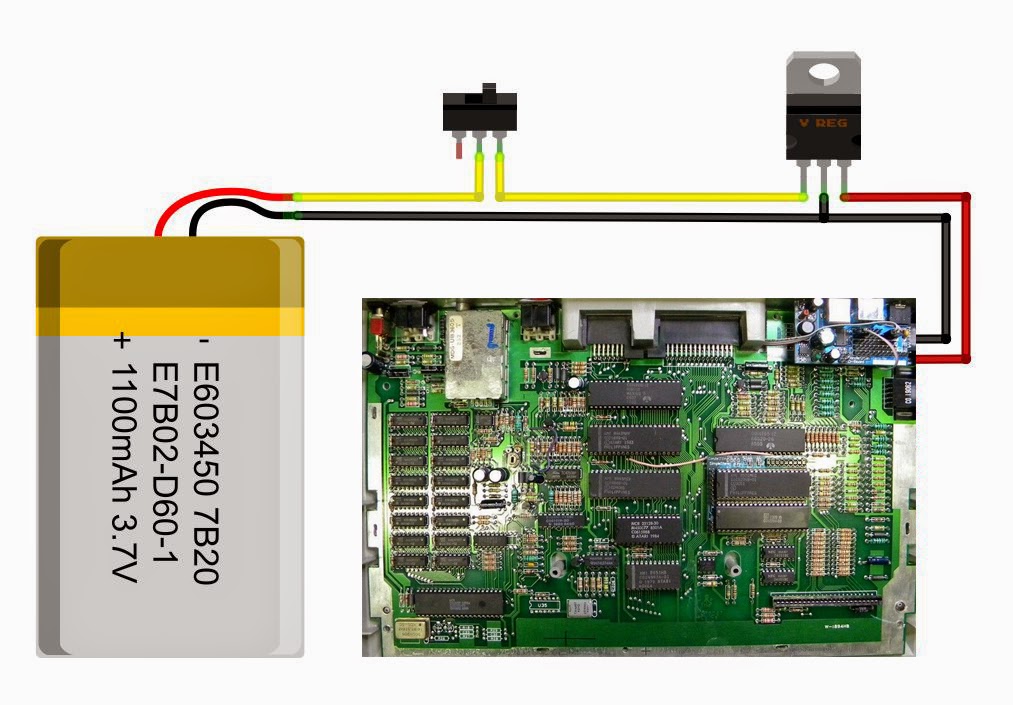
This design considers interrupting the 12V line. If you do it at the 5v stage after the regulator, you can easily solder the circuit directly to the 5v connector on the motherboard. However, this won't work best because the regulator will continuously draw current from your battery until depletion. Not good.

On the other hand, interrupting the battery feed directly like the diagram shows, will force you to add a secondary switch or de-solder the original switch.


Caveats on the design:


  • This design requires you to understand LiPo batteries because these are delicate and potentially dangerous. 
  • You will need good soldering skills and take the necessary precautions while connecting everything together and isolating the connections properly.
  • You will need a special charger to take care of the life of the battery as well as to prevent overcharge.


Regulator placement


The three legs of the power switch were de-soldered from the main board and isolated. This power switch now handles 12v instead of 5v.


Final battery placement
Project finished, ready for the final cover.

Charging


Charging gets accomplished using a special LiPoly charger directly to the balancer connector of the battery. That connector reaches the exterior of the case via the expansion port. If you look closely the last picture you will see a white connector sticking out.


After finished, I left it on by accident and noticed almost 3 hours later. 
The battery was at 11.7v, plenty of life left. But this definitely reminds me of the....


To Do


Add a low battery automatic shutdown to prevent damage to the battery.

Thanks for watching, stay tuned.


Tuesday, December 18, 2012

Casing the SIO2SD inside an Atari XC-12

My tips on how to mount any SIO2SD drive inside a cassette tape drive.


Get the guts out and remove the motors and the board


Hot glue the micro-switches to the buttons.


Mount the LCD on the cassette lid.


Wire the buttons


Solder the buttons to the main board


Wire the LCD


Ready for final mounting. Select a spot and dremel a slot for the SD card.  Notice I built a small circuit to enable the rewind button.

Rewind Option:


Lotharek's board does not come with a "previous file" / "back" dedicated button.
However, the previous file (navigation in reverse order) can be accomplished by simultaneously pressing SHIFT+K4.

This "rewind option" can be implemented with the following circuit, which emulates the simultaneous press of SHIFT and K4:


It is built out of two NPN transistors in parallel. The base of each of these transistors have its respective current limiting resistor but then are joined together and connected to the "Rewind" key. One emitter goes to the Shift Key and the other emitter goes to K4 in the lotharek Board. As a result, a single press of the rewind key sends a SHIFT+K4 command to the board, producing the desired rewind effect.


SD card in place


Final product in production. Everything is battery powered


Sunday, December 16, 2012

Atari XF-551 Power DC supply mod

Find a need:
In the absence of the original 9V AC power supply required by the Atari XF-551 5.25 diskette drive, I decided to modify it to a brickless version.


Fill a need: 
Since the diskette drive is a standard IDE, we can use a standard IDE power supply (Any power brick capable of 15V and 2A should suffice.


First test: Will this work?

Note that if you feed the drive mechanism directly, you will not be feeding the main board of the XF-551, which means you will need to send power back to the board as you see in the picture below. The blue, red and green jumper wires are taking power from the connector board on the drive unit and sending it back through the original IDE connector and through the white ribbon wire to the main board.


Q: This is a power brick that supplies both 5V and 12V. Can I use something that provides only 12V?
While you can connect the power supply to the output of the 12V regulator and 5V regulator in the case your power can supply both voltages, you can't use a single 12V power supply and connect it to the OUTPUT OF THE RECTIFIER BRIDGE, which is a large dice attached to the dissipator. The reason being that you can't feed a 12V regulator with 12V.

You actually may be able to make it work with 12V to feed the whole board and drive, but chances are that the 12V regulator on the XF551 will deliver only 8 or 9V, which means your drive will be able to read diskettes but NOT WRITE or format anything.

Bottom line, if you can't find something that provides both 12 AND 5v, go for a 15 V or greater power supply. The on-board regulators will take it from there.


Now for the final mod in 10 simple steps:
There's a great space on the board, just inside the big heat dissipator to place this power unit.

1) Crack open the plastic case of your PSU, and use the guts, otherwise it will not fit in the drive.
2) De-solder and remove the original 9VAC jack on the main board of the XF-551 to avoid any accidental power supply mixture.
3) Hook the 12V line of the power brick to the 12V output of the 12V onboard regulator and the 5V line of your power brick to the output of the 5V regulator on the XF551.
4) Hook the GND line of the power brick to the GND on the main board of the XF-551.
5) Note that the rear switch has been disabled because the power jack was removed.
6) Pass the AC high voltage cable through the hole left by the absent power jack, and squeeze it with a zip tie to prevent accidental pulling.
7) Solder the mains power cable to the power brick.
8) Isolate the bottom of the power brick with tape and/or cardboard.
9) Stick the power brick to the original heat dissipator using double sided tape.
10) This may get hot, so a small fan will help to keep things cool.


Picture below shows how yellow cable feeds 12V to the output of the regulator, while the RED wire feeds 5V to the output of the 5V regulator.


and voliĆ” the PSU inside the XF:


Isolation is important. This is live voltage. I isolated the bottom side of the PSU board with cardboard and tape. That's in case the heat melts down the glue and the PSU ends up falling on top of the main XF board.
Make sure the bottom part of the PS is adequately isolated.


You can see there's not a lot of weight added to the unit, and the result is as practical as you see below. The power plug in this particular case is a CEE 7/16 Europlug for 220VAC used by some countries in South America and Europe:


Ah.... there's one more thing.

The XF-551 LED mod.

Now that your XF is open, add a red LED with a 330Ohm resistor. Hook it up to the 5V line and place the LED RIGHT BEHIND THE ORIGINAL LED.

The effect is the same as a bi-color LED. The new addition will lit as long as your disk drive has power.
When the drive is spinning, the green (original) led will light up, but it will mix colors with the existing RED led, providing a nice orange color.

Now you know when your drive is both powered and active, just like the 1050.


Enjoy!

Sunday, December 9, 2012

Hakko FX-888 (220V version) LED Hack

(c) EEVblog

As seen in Dave's EEVBlog, there's a quite handy hack to help you realize if your soldering iron is turned on or not by replacing the original LED with a bi-color two-legged LED.

Circuit being basically the same designed by Dave, my version features a small board with a cable extension to the LED.


It's a very simple project, check out the schematics below for the 110v version of the soldering station:

Fig 1. Schematics for the 110v version connected to the Hakko microcontroller open collector driver


Instructions for the 220v version of the FX-888: 

The 220v version happens to be different than the 110v version as it lacks of a microcontroller with an open collector driver. It actually has analog components (some Op amps and an opto isolator to drive the triac).

In this case, you just need to add a general-purpose opto coupler (2N36) as follows:

- Feed the opto coupler with the LED pins.
- Use the open collector of the opto coupler as a driver for the Dave Jones' version of the bi-color LED circuit.


Fig 2. Schematics for the 220v version connected to the original LED terminal


Mounting instructions:


Red and black wires are coming out from where the original LED was and they feed the optocoupler.

Ground terminal for the blinking circuit is taken from the negative side of the big capacitor, with easy access through the large resistor. The other end of this same resistor will be used to feed the Vcc line. There is a 10v voltage drop at this resistor.


The completed project working. The result is the exact same result you will see in the video below.

Now look closer. See how I covered the high voltage section with Gorilla tape while working? That's what smart people do. Please be careful when testing your circuit with the case open as 220VAC can kill you, or someone else -your cat included-.

Even simpler would be to drill a small hole on your iron and add a second LED hooked up to any Vcc point you may find on your board, just as I did with my old Atten station a couple of years ago, addressing the exact same LED issue.

And this is the original video with -as always- a great explanation from Dave Jones. Thank you Dave.


Thursday, May 17, 2012

LCD serial display out of an old Palm


Here's a good way of recycling old hardware: Use a palm device for your Arduino projects as a full-featured display.

You may want to get rid of the DB9 serial cable by just cutting it from the cradle and adding this small and cheap TTL-RS232 converter made of two transistors and four resistors. This circuit is a must, since the palm device uses RS232 levels to communicate while your Arduino or other micro will most likely use TTL levels.

Make sure you have some spare method to transfer software from the computer to the palm if needed, such as an SD card.


The circuit in place.

Rear view of the cradle.


The circuit fits nicely in the cradle, and the schematics are a modified design taken from Jim's Projects [Link] I made a different design choice here, and pull up the palm's RX line directly from +5V instead of doing it from DTR.


Schematics for the TTL-RS232 conversion circuit.

If you don't plan to use your Palm as a serial input device, then the TX line of the Palm (pin 2) is optional and you may wish to use only the output line of your microcontroller for a unidirectional configuration.


The finished setup at work. You can keep it handy in your workbench. The stand helps to keep it at a nice view angle.


Here you can see a repurposed Palm with PalmOrb software, which emulates a 16x4 LCD screen.
However you can use any standard Palm terminal software.

Plug and Play, no especial libraries required in the Arduino.

Enjoy!